
Price management
Every price your customer sees in the configurator is set up in the Product Editor: fixed prices on options, step prices on number inputs, and calculated prices built with formulas that can react to what the customer selects. This page covers where the price fields live, how the logic editor works, and two worked examples — an m² price and a conditional price.
The manager can be used in English or Dutch. Each setting below lists the Dutch label in parentheses as well, so the page works whichever language you have selected.
Where to find it
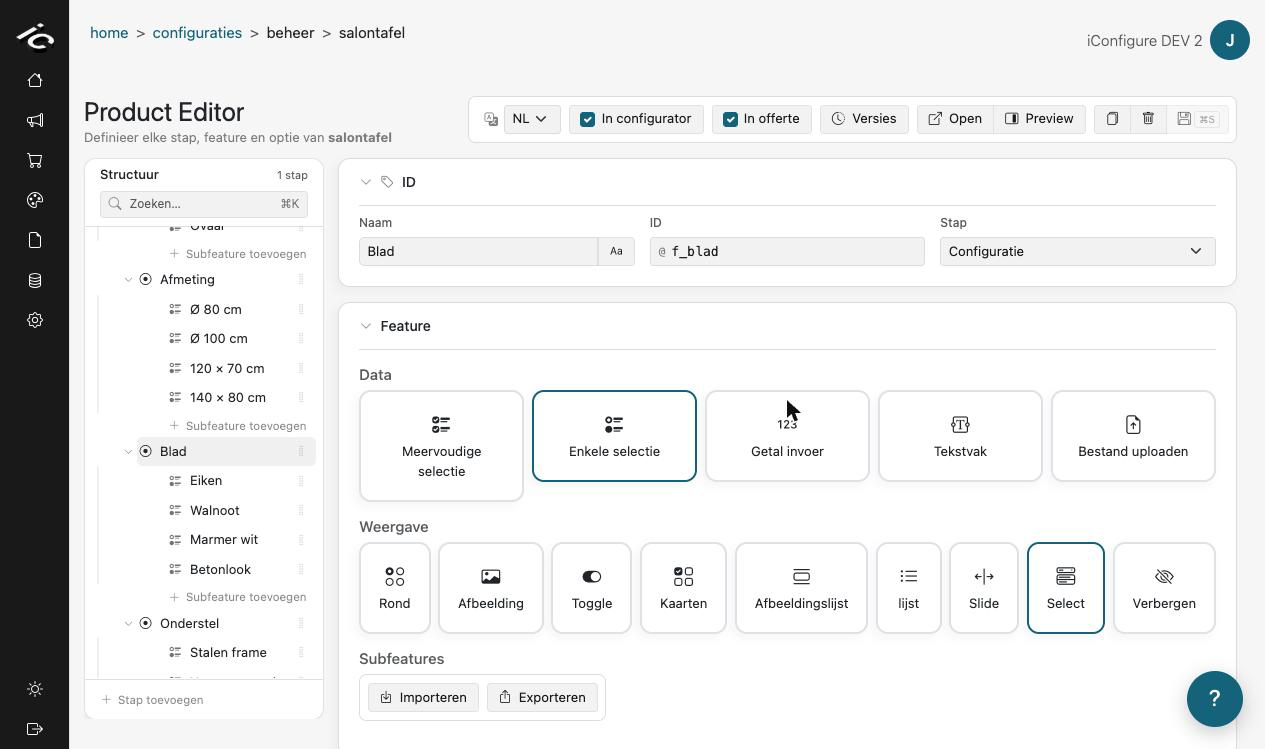
Manager → Configurations (Configuraties) → open a product → Product Editor. Select a step, feature, or option (subfeature) in the tree on the left; its settings appear on the right, split over the tabs Content (Inhoud), Pricing (Prijzen) and Logic (Logica). Price fields live on the Pricing tab; conditions, visibility and number limits on the Logic tab.
Price fields
Fixed price on a feature or option
Open the Pricing (Prijzen) tab of a feature or subfeature. The Price (Prijs) field sets a fixed amount in euros. For a subfeature (an option the customer can pick), this amount is added to the total whenever the option is selected. Once price logic is switched on for the option, the outcome of that logic replaces the fixed amount.
For a feature, the price field behaves differently: it does not add to the total by itself. It is a stored value you can reference from calculations elsewhere (via @@featureID.price@@ — see below). Use it as a central place for a rate, such as a price per m².

The Logic (Logica) section on the Logic tab holds Required to answer (Verplicht beantwoorden). With it on, the customer cannot continue past the step until this feature has an answer. A single selection always has to be answered, so the switch is forced on there.
Step price on a number input
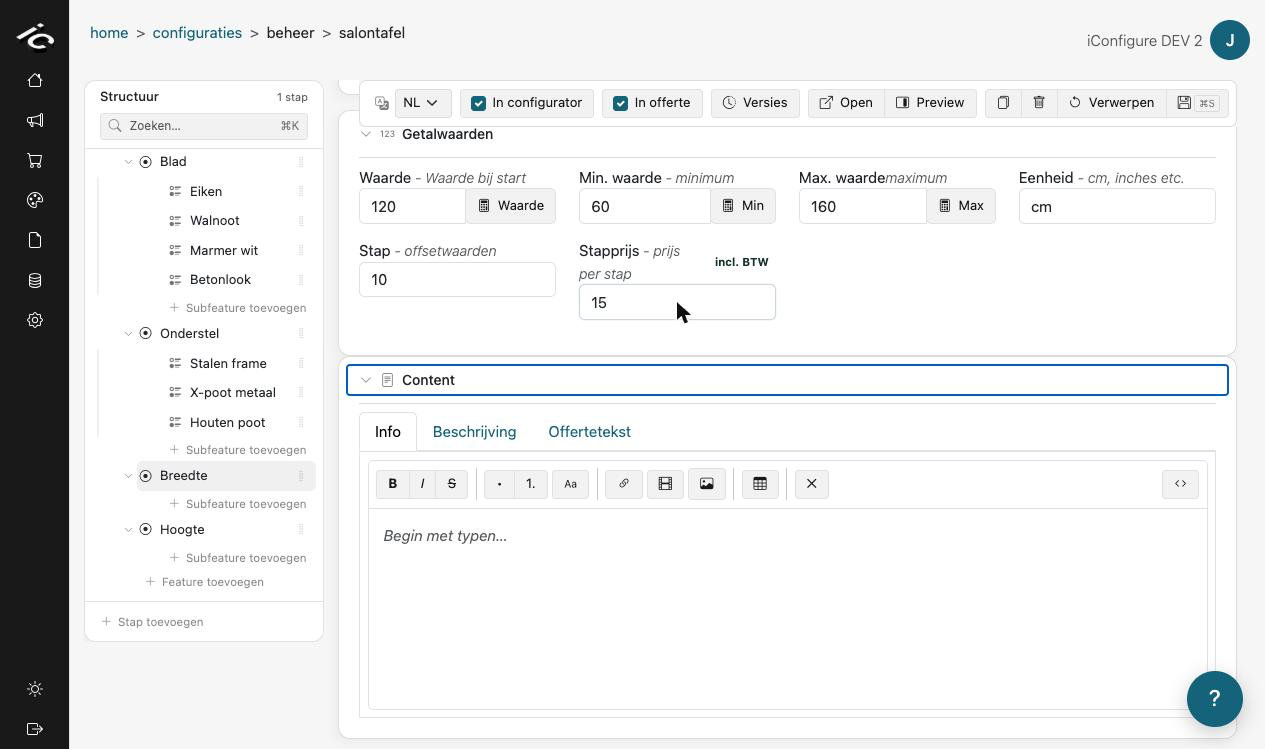
Number-input features (width, height, quantity, …) have a Number values (Getalwaarden) section: Value (Waarde), Min value (Min. waarde), Max value (Max. waarde) and Step (Stap) on the Logic tab, Unit (Eenheid, e.g. cm) on the Content tab and Step price (Stapprijs) on the Pricing tab.
The step price is charged per step above the minimum: price = (value − min) / step × step price. A width input from 60 to 120 cm with step 10 and step price € 15 adds € 90 at 120 cm.
Product-wide financial settings
Select the product itself in the tree and open the Pricing (Prijzen) tab. The product's Financial settings (Financiële instellingen) and Price entry mode (Prijsinvoermodus) apply to every price in the product:
| Setting | Dutch | What it does |
|---|---|---|
| VAT | BTW | VAT percentage used when prices are entered excluding VAT. |
| Round all prices to | Alle prijzen afronden op | Rounds every computed line, e.g. to 0.05 or 1. |
| Additional percentage | Extra percentage | Adds a surcharge/margin percentage on top of every line. |
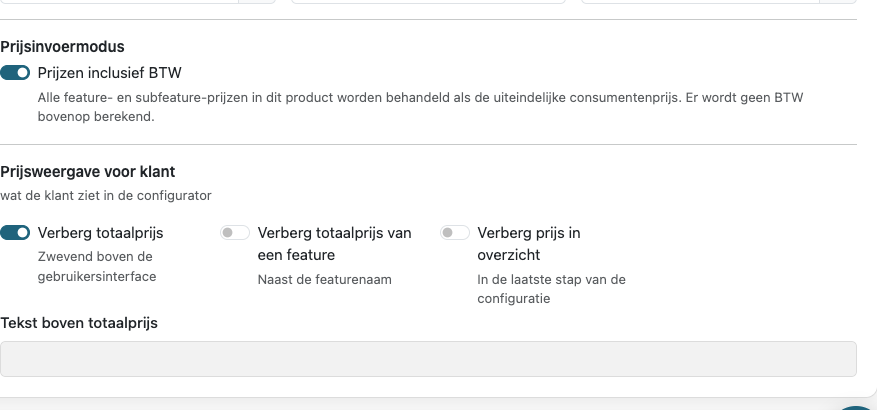
| Price entry mode | Prijsinvoermodus | A switch between Prices include VAT (Prijzen inclusief BTW) and Prices exclude VAT (Prijzen exclusief BTW). In excluding mode, every price and calculation in the product must be entered without VAT. |
Prices are processed in this order: raw price → + VAT → + extra percentage → rounding.
Customer price display
Under Customer-facing price display (Prijsweergave voor klant) you control what the customer sees: hide the total, hide per-feature prices and hide prices in the summary. The Text above total price (Tekst boven totaalprijs) is set in the product's Content section on the Content (Inhoud) tab.
The logic editor
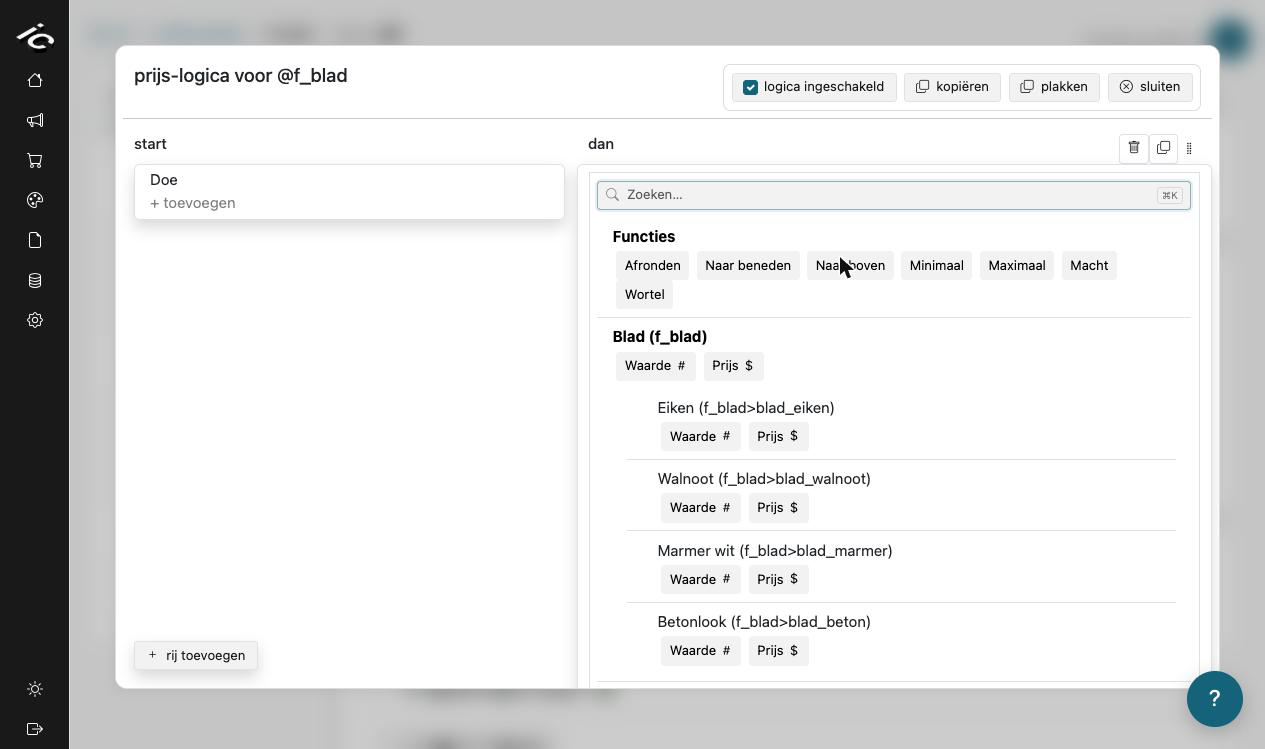
Next to the Price field (and to Min, Max, Value (Waarde) and Visibility (Zichtbaarheid)) sits a calculator button. It opens the logic editor: "price logic for @featureID" (prijs-logica voor @featureID). The calculator buttons are only shown on products using logic version 2.
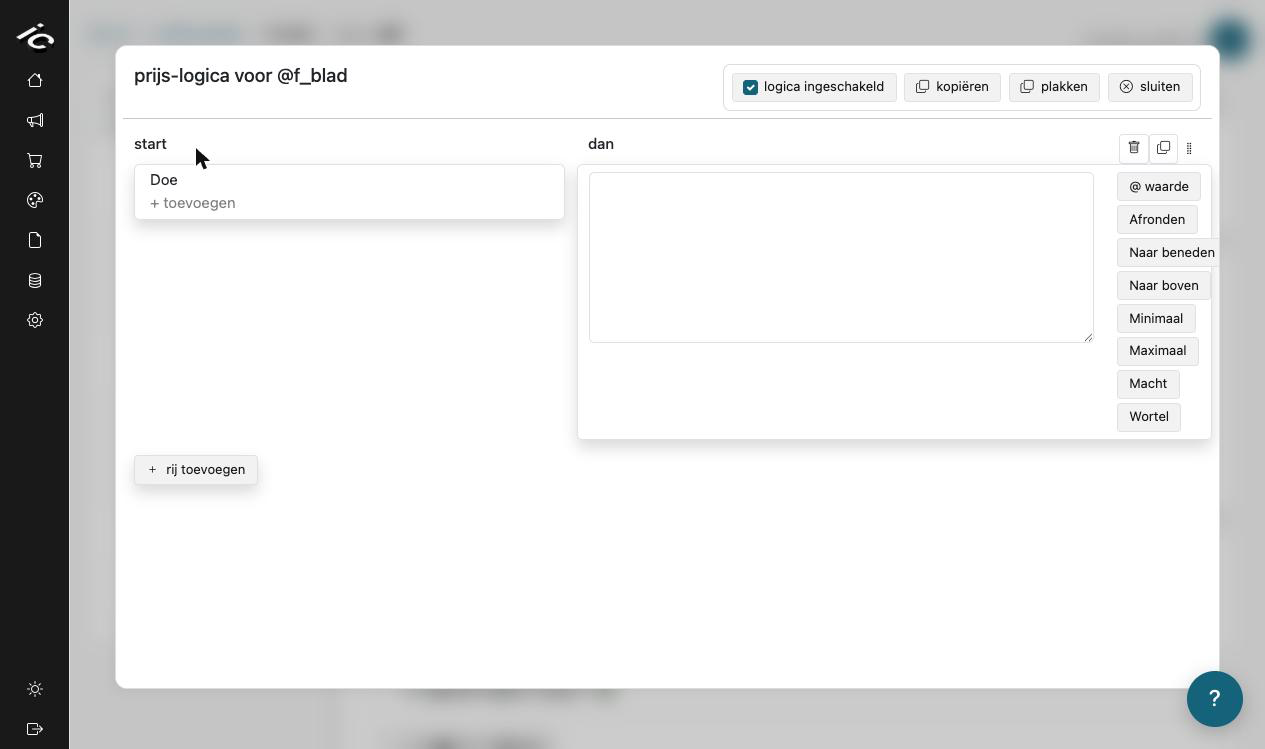
The editor is a list of rows, evaluated top to bottom like if/else-if:
- Left column — the conditions. The first row is labelled start, later rows anders (else). The first row whose conditions are met wins.
- Right column (dan) — the formula that produces the price.
- Add row (rij toevoegen) adds another condition/formula pair. Rows can be reordered by dragging, duplicated or removed with the icons next to dan, and whole logic blocks can be copied between items with copy (kopiëren) / paste (plakken).
- Logic enabled (Logica ingeschakeld) switches the logic on or off; while it is off the rows are kept but not applied.
Referencing other features
Type @ in the formula field, or click Insert variable (Variabele invoegen) in the toolbar above it, to open a search list. Each entry is a feature or option combined with what to read from it — Value (Waarde), Price (Prijs), Minimum or Maximum (the last two for number inputs). Picking one inserts a reference, shown as a chip with the feature's name. The Raw tokens (Ruwe tokens) button in the toolbar shows the underlying tokens instead:
| Token | Resolves to |
|---|---|
@@featureID.value@@ | The customer's current number input / quantity. |
@@featureID.price@@ | The feature's Price field (a stored rate). |
@@featureID.min@@ / @@featureID.max@@ | The number input's min/max. |
@@featureID>optionID.value@@ | The option's quantity value. |
@@featureID>optionID.price@@ | The option's price. |
@@featureID.selected.property@@ | A custom property of the selected option (summed over all selected options in a multiple selection). |
@@featureID>optionID.property@@ | A custom property of that option. |
Operators and functions
Formulas support + - * / ( ) and ^ (power). Insert a function with Insert function (Functie invoegen) in the toolbar, or start typing its name (three letters are enough to get suggestions):
| Function | What it does |
|---|---|
ROUND(x) / ROUND(x, step) | Round, optionally to a step (e.g. 0.5). |
FLOOR(x) | Round down. FLOOR(x, min) instead clamps to a minimum. |
CEIL(x) | Round up. CEIL(x, max) instead clamps to a maximum. |
CLAMPMIN(x, min) | Never lower than min. |
CLAMPMAX(x, max) | Never higher than max. |
SQRT(x) | Square root. |
POW(x, y) / POWER(x, y) | x to the power y. |
Tidy up (Opschonen) in the toolbar cleans up the formula's spacing. If a formula contains a mistake — an unknown ID, a missing operator, an unclosed bracket — a warning below the field says that the formula currently evaluates to 0 and why.
Visibility logic
Visibility (Zichtbaarheid) decides whether a feature or an option is shown at all. It uses the same editor, but the outcome is not a formula: the right column is a dropdown with true (waar) and false (onwaar), and there is only one row — no else branch, and Add row (rij toevoegen) disappears once that row exists.
Read the row as the visibility outcome will be true: the item is shown when the conditions are met and hidden when they are not. Pick false and the rule inverts — the item is hidden exactly when the conditions are met. Every rule can be written either way, so pick the spelling that reads most naturally.
Hiding is not only visual. A hidden feature is deactivated: its answer is cleared, its quantity drops to 0, and it no longer counts towards the total. A hidden option inside a single or multiple selection is deselected first; if that leaves a required single selection without an answer, the configurator selects the visible option that now sits in its place.
Visibility is resolved before min/max, quantities and prices, so a formula elsewhere never reads a value from something the customer cannot see. Hiding a feature also takes its options out of the flow — you do not need a second rule per option.
Example — the tabletop colour Oak should only be selectable when the material is oak:
- Select the item in the tree — here the option
color_top_oak— and open the Logic (Logica) tab → Visibility (Zichtbaarheid). - Switch on Logic enabled (Logica ingeschakeld) — without it the rule is stored but not applied.
- Condition: + Add (+ Toevoegen) → condition (voorwaarde) → search
Materiaal→ Selection (Selectie) → operator=→Eikenhout. Clicking theEikenhoutbutton underMateriaalin the search results does the same in one go. - Outcome: true (waar).
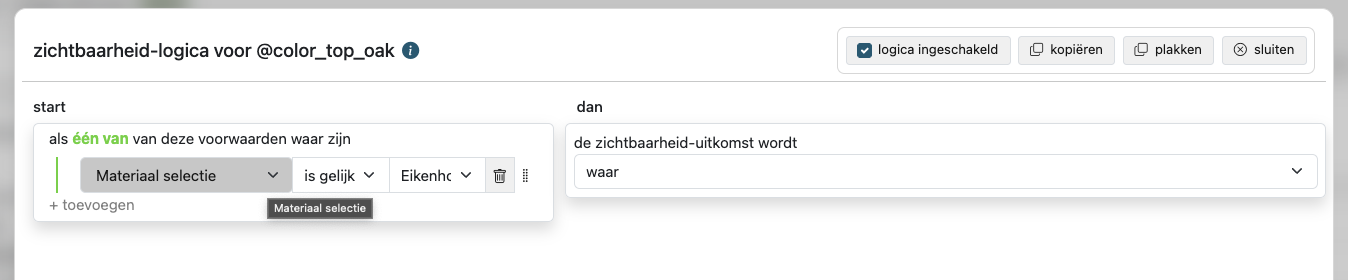
The option now only appears on an oak top. Pick another material and it disappears; if the customer had it selected, the next visible option takes its place. The same rule written the other way round — operator != with outcome false (onwaar) — behaves identically.
From two conditions on, the group header reads if any of these conditions are true (als één van deze voorwaarden waar zijn); click the highlighted word to switch between any (één van) and all (al). It decides whether one match is enough or all of them have to hold.
Put the rule on the feature instead of on one option and the whole question disappears from the flow, options included.
Step repetition
A step can be shown more than once. Open a step and unfold Repetition logic (Herhalingslogica); the calculator button there opens the same editor, but the outcome is not a price — it is how many times the step appears in the flow.
Return 1 (or leave the logic off) and the step is shown once. Return 3 and the customer walks through the step three times; each pass is an independent copy with its own answers, and every copy is priced separately. The usual source is another feature's value, e.g. @@aantal_ramen.value@@ for "one pass per window".
The condition column still applies: is no row met, then the step falls back to a single pass. Fractions are truncated to a whole number; make sure the formula returns at least 1.
Repetition logic only exists on products using logic version 2. On older products the section is not shown.
Example: price per m²
There is no built-in m² field — you build it from two number inputs and one formula.
Create two number-input features, e.g. IDs
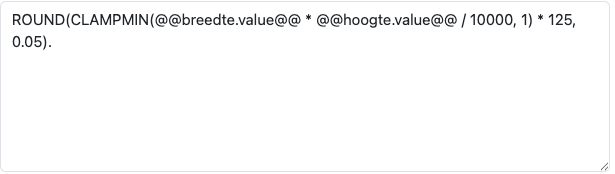
breedteandhoogte, with unitcmand sensible min/max values.On the feature or option that carries the price, open the Price calculator and enter (for € 125 per m², inputs in cm):
(@@breedte.value@@ * @@hoogte.value@@ / 10000) * 125Refine as needed — bill at least 1 m² and round to 5 cents:
ROUND(CLAMPMIN(@@breedte.value@@ * @@hoogte.value@@ / 10000, 1) * 125, 0.05)To keep the rate maintainable, put
125in the Price field of a feature (e.g.m2prijs) and reference it as@@m2prijs.price@@instead of hard-coding it.
Tip: to show the computed m² to the customer, add a read-only number input and give its Value (Waarde) logic the same area formula.
Example: conditional price
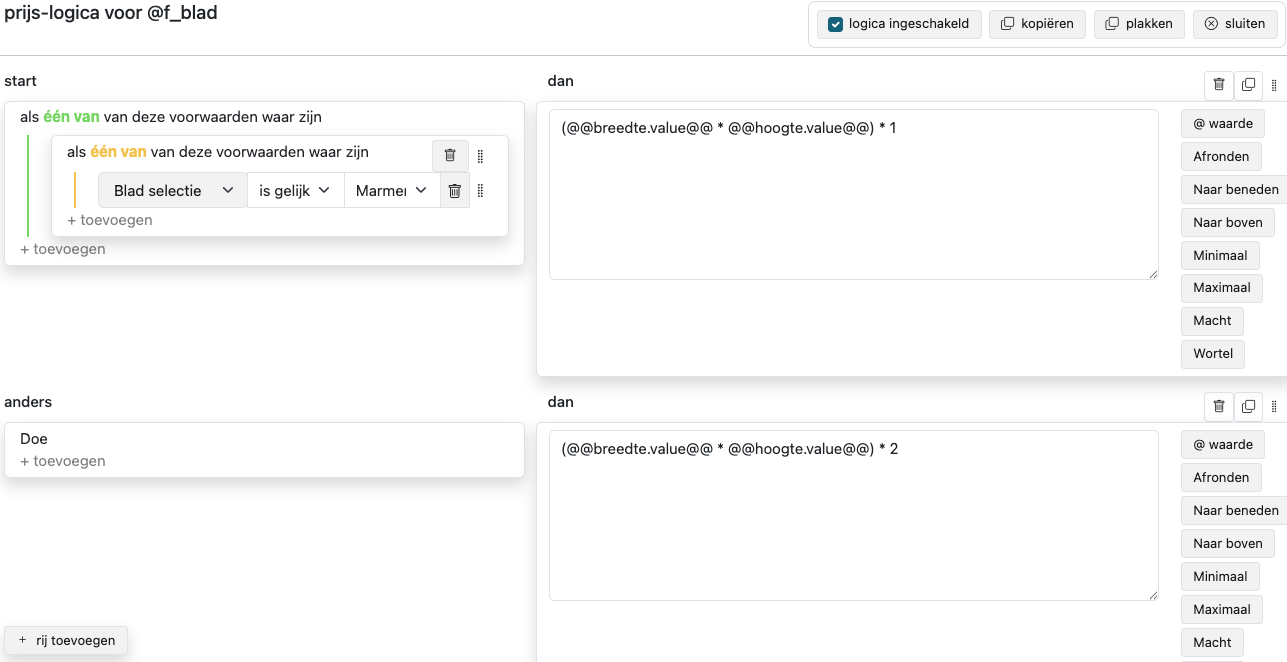
Say the m² rate depends on the chosen tabletop material. In the price logic, use two rows:
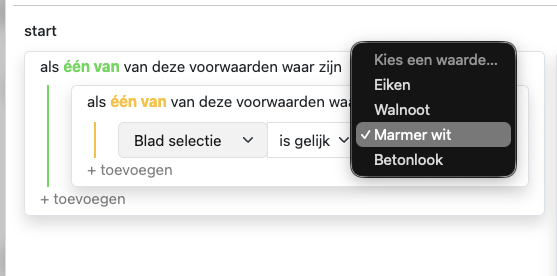
- Row 1 (start): condition — click + Add (+ Toevoegen) → condition (voorwaarde), search the feature, pick e.g.
BladSelection (Selectie), operator=, valueMarmer wit. Formula:(@@breedte.value@@ * @@hoogte.value@@ / 10000) * 165 - Row 2 (anders): no condition — the fallback. Formula:
(@@breedte.value@@ * @@hoogte.value@@ / 10000) * 125
Condition groups can require all (alle) or one of (één van) the conditions, and can be nested. Number conditions support >, <, = and !=; selection conditions support = / != with an option picker. When the options of a selection have custom properties, Property (Eigenschap) compares a property of the selected option instead, with the same operators as a number. Conditions on hidden or inactive features count as not met.
How the total is computed
The configurator computes everything live in the browser — there is no separate price service to call. Per feature line: the feature's price logic (if any) + step price of number inputs + the prices of selected options. Each line then gets VAT, the extra percentage, and rounding applied, and the total sums all active, visible lines. The total is shown in the configurator's action bar and summary, and is included in every submission and webhook payload as total_price.
Renaming IDs used in formulas
Feature IDs are the anchors of your formulas. If you change an ID that is referenced in logic, the editor warns you (ID gewijzigd) with the number of affected rules and offers Replace and save (Vervangen & opslaan) to update all references, or Save without updating (Alleen opslaan). The References (Referenties) collapse on each item shows where its ID is used.